Knowledge Base

  • Interacting with the player: Time Markers

    When using WavePlayer for your podcasts, it can be useful to reference a specific part of the audio track in the text, allowing your visitors to jump directly to that part. This can be easily achieved by adding simple anchors to any part of your page. The structure of the anchor can be as follows:

    <a href="#" onclick="WavePlayer.setCurrentTime(120)">your anchor text goes here</a>

    where the value provided to the setCurrentTime method is the time, expressed in seconds, you want your visitors to jump to. The previous anchor will allow users to jump to 2:00 into your track (2 minutes = 120 seconds). Please note that the href attribute of the anchor must be set to #: this allows the browser to execute the onclick script. If you left the href attribute empty, the page would reload and the onclick script would never execute.

    MarkerDescription
    1:00You can use markers to jump to any part of the track that is currently playing back
    This is a marker behind an icon.
    2:47A marker is nothing but an anchor with the href attribute set to # and the onclick attribute set to WavePlayer.setCurrentTime( 167 ) where 167 is the number of seconds from the beginning of the track.
    jump hereThe text of the anchor can be anything: a time reference, a title, a single word in the text, a whole part of the paragraph, an icon or an image. It just depends on what you put inside the anchor tags.
    When using the setCurrentTime method, you can specify decimals up to any desired precision. For example, by specifying 65.768, the player will jump to 1 minute, 5 seconds and 768 milliseconds into your audio file.

    Preventing the browser from jumping to the top of the page

    When you add the # symbol to the href attribute of an anchor element, the browser expects the subsequent text to be the ID of an element on the page, so that it can jump to it. When you set the href to just the # character – as recommended here to add time markers to your pages – the browser jumps to the top of the page, in absence of any other indication of a section where it should jump to. This could be an undesirable effect when you are using the anchors as Time Markers. In order to prevent this behavior, you can add a call to event.preventDefault() to the onclick attribute, as follows:

    <a href="#" onclick="event.PreventDefault(); WavePlayer.setCurrentTime(132);"></a>

    The difference between the default behavior and the one when event.preventDefault() is used can be observed by clicking the first two markers and the last two markers in the previous table.
  • Using multiple skins on the same page

    With WavePlayer 3 you have now the possibility to use multiple skins on the same page. The page you are reading now was assembled using the Gutenberg editor. After structuring the page and adding several players to each section, each player was adjusted to use one of the six skins included with the plugin.

    For example, the player on the left side of this paragraph uses the W3 Exhibition skin – a version of the W3 Standard skin where the thumbnail of the current track is used as a blurred background for the player. While the player right after this paragraph uses the Play’n’Wave skin – the skin that is used by default for the player automatically added to the WooCommerce single product page.

    In the following section, you can appreciate the Thumb’n’Wave skin, an interface we designed as a companion for the WooCommerce shop page.

  • Barn2 WooCommerce Product Table

    WavePlayer 3 improves the integration with the most popular addons for WooCommerce. The Barn2 WooCommerce Product Table is certainly among those.

    The new version of WavePlayer adds native support to the Barn2 Product Table columns, allowing you to add a player instance in the most intuitive way possible. This makes WavePlayer arguably the easiest player with waveform capabilities that it is possible to integrate with the Barn2 WooCommerce Product Table plugin. By simply including a column called waveplayer to your columns option – either in the Product Table settings or in the shortcode of each product table –, WavePlayer will automatically retrieve the preview files associated with each product and print a player with the appropriate tracks in the corresponding column. No more acrobatics with short descriptions or custom field tricks: let WavePlayer take care of all this for you!

    For example, the following shortcode:

    [ product_table columns="waveplayer:Preview, name, price, add-to-cart" ]

    creates a product table similar to the one below, with four columns respectively containing an instance of WavePlayer, the title of the product, its price and the button to add the product to the cart.

    Yes, it truly is that easy!

    PreviewNamePriceBuy
  • Overriding the default player

    WavePlayer has the capability of overriding the WordPress default audio player. This means that, right after installing WavePlayer, all the shortcodes you have already inserted in your post will be replaced with WavePlayer automatically, without any need to re-edit your posts or change anything in your configuration. Of course, we strongly encourage you to deactivate any other audio player plugin, ensuring that there are no conflicts in your configuration and the overriding function works without interferences.

    Please also note that when the URL you are using to add a player with any of the following methods corresponds to an audio attachment in your Media library, WavePlayer is capable of retrieving all the metadata stored in the database pertaining to that audio attachment. This guarantees that you can take advantage of all the extra features WavePlayer associate to your internal files (e.g. play statistics, likes, downloads, etc.), even when adding a file using its URL rather than its attachment ID. Although this latter method is always preferred, the capability of retrieving an attachment ID from the URL of the attached file makes the two result practically indistinguishable.

    The following examples demonstrate that WavePlayer can override the default WordPress audio player with all the possible audio-related shortcodes or even the RAW URLs typed in your post.


    Overriding the audio and playlist shortcodes

    The player above is added in the post editor using the following shortcode:

    [ audio mp3="https://media.waveplayer.info/wp-content/uploads/2020/04/0203.mp3"][/audio]

    Overriding the embed shortcode

    The player above is added simply pasting the URL of the audio file directly in the post editor, like this:

    [ embed]https://media.waveplayer.info/wp-content/uploads/2020/04/0203.mp3[/embed]

    Overriding the inline URL in the text

    https://media.waveplayer.info/wp-content/uploads/2020/04/0203.mp3

  • Embedding WavePlayer

    Starting from version 2.3.1, it is now possible to embed WavePlayer inside other websites using an <embed> element.

    WavePlayer 2.3.1 comes already with this capability, but you need to add an embed-attachment.php file to your Child Theme.

    When WordPress finds that file in your Theme root folder, it uses it to display an element from your website inside an <iframe>. If you want to read more about this technique, you can refer to this article in the WordPress documentation.

    The embed-attachment.php template file

    Let’s start with a basic structure of the embed-attachment.php file.

    <?php
    get_header( 'embed' );
    if ( have_posts() ) {
        while ( have_posts() ) {
            the_post();
            echo do_shortcode("[ waveplayer ids='" . get_the_ID() . "']");
        }
    } else {
        get_template_part( 'embed', '404' );
    }
    get_footer( 'embed' );
    ?>

    Compared to the usual single.php, the file embed.php (or, in this case, embed-attachment.php) adds the name ’embed’ to get_header() and get_footer(). We then see the main query looping among all the results. Since this is going to be used on a single attachment post, the query is going to return only one result: the page of the attachment we want to embed inside an external website.

    How do we get the right link to be used in the embed element? It is pretty easy. Just go to the Media library and click on the thumbnail of the audio attachment you want to embed. In the right bottom corner, look for the link “View Attachment Page“, right click on it and choose “Copy link address” (or, alternatively, click on it and copy the URL in the address bar of the browser).

    Now, it is just a matter of typing the right embed code inside the website where we want to publish our attachment. The embed code looks like this:

    <embed height="220" src="https://www.waveplayer.info/10197133_wedding_by_audiopizza_preview/?embed=true">

    Please note that, in order for this to work, it is important that you add embed=true at the end of the link. You need also to pay attention to the structure of the URL you copied. If the URL already contains some arguments, like the following one:

    www.waveplayer.info/?post_type=attachment&p=1614

    then you have to add embed=true at the end of the URL prefixing it with an ampersand (&) like this:

    www.waveplayer.info/?post_type=attachment&p=1614&embed=true

    On the contrary, if your URL is a permalink like this:

    www.waveplayer.info/10197133_wedding_by_audiopizza_preview/

    you have to prefix embed=true with a question mark (?), like this:

    www.waveplayer.info/10197133_wedding_by_audiopizza_preview/?embed=true

    A simple rule of thumb to better understand whether you need to use a question mark or an ampersand is checking the URL you have before adding the embed argument. If the URL already contains a question mark, then it means you need to add the embed argument prefixing it with an ampersand. If the URL doesn’t contain a question mark, then you need to use that to add the embed argument.

    Providing additional arguments

    You can also pass additional arguments to the URL you embed, so that you can alter the aspect and the property of your embedded WavePlayer instance. For example, the following example pass the size and the shuffle argument to the embedded player:

    www.waveplayer.info/10197133_wedding_by_audiopizza_preview/?embed=true&size=large&shuffle

    Of course, we have to make some adjustments to the embed-attachment.php file as well, so that we process the additional arguments. The following code retrieves the size and shuffle arguments from the URL and incorporates them into the shortcode:

    <?php
    $args = array();
    if ( isset( $_GET['size']) ) $args[] = "size='$size'";
    if ( isset( $_GET['shuffle'] ) ) $args[] = "shuffle='true'";
    $args = implode( " ", $args);
    get_header( 'embed' );
    if ( have_posts() ) {
        while ( have_posts() ) {
            the_post();
            echo do_shortcode("[ waveplayer $args ids='".get_the_ID()."']");
        }
    } else {
        get_template_part( 'embed', '404' );
    }
    get_footer( 'embed' );
    ?>

    By following the example above, you can add as many arguments as you like to the embedded URL, adjusting the WavePlayer instance to your needs.

  • Playlist with max-height

    In this example, a specific CSS rule is applied to the playlist to set its max-height, like this:

    .wvpl-playlist ul {
        max-height: 160px!important;
    }

    Because of that setting, the playlist only shows the first few tracks. The hidden items can be revealed scrolling with the mouse. In addition to that, WavePlayer automatically scrolls the playlist to make the playing track always visible. The automatic scrolling occurs either when the user advances the tracks with the skip buttons and when the player jumps to the next track at the end of the current one.

  • Working with WooCommerce

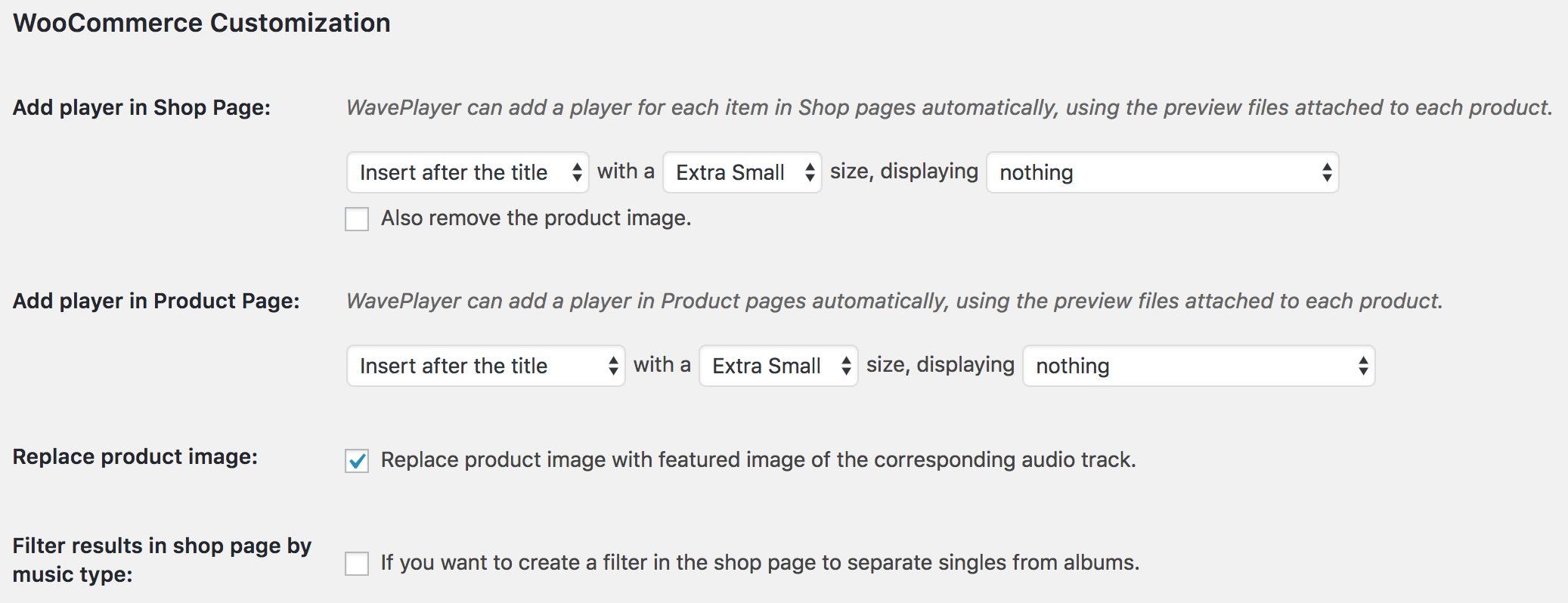
    WavePlayer allows any WooCommerce user who sells audio-related products to automatically insert an instance of the player in connection with each product.

    Whether you use your website to sell songs or licenses of your music library or sound effects or the latest episodes of your podcast, you probably experienced the hassles of manually adding a player in the short or full description of your products. WavePlayer offers you a seamless integration, using the WooCommerce product editor you are already familiar with.

    PREVIEW FILES

    It is important to understand the meaning and purpose of preview files. When you sell downloadable products, WooCommerce uploads their related files to a special folder that is restricted from any access in the browser. This makes those files not accessible to any other elements of your website, including WavePlayer.

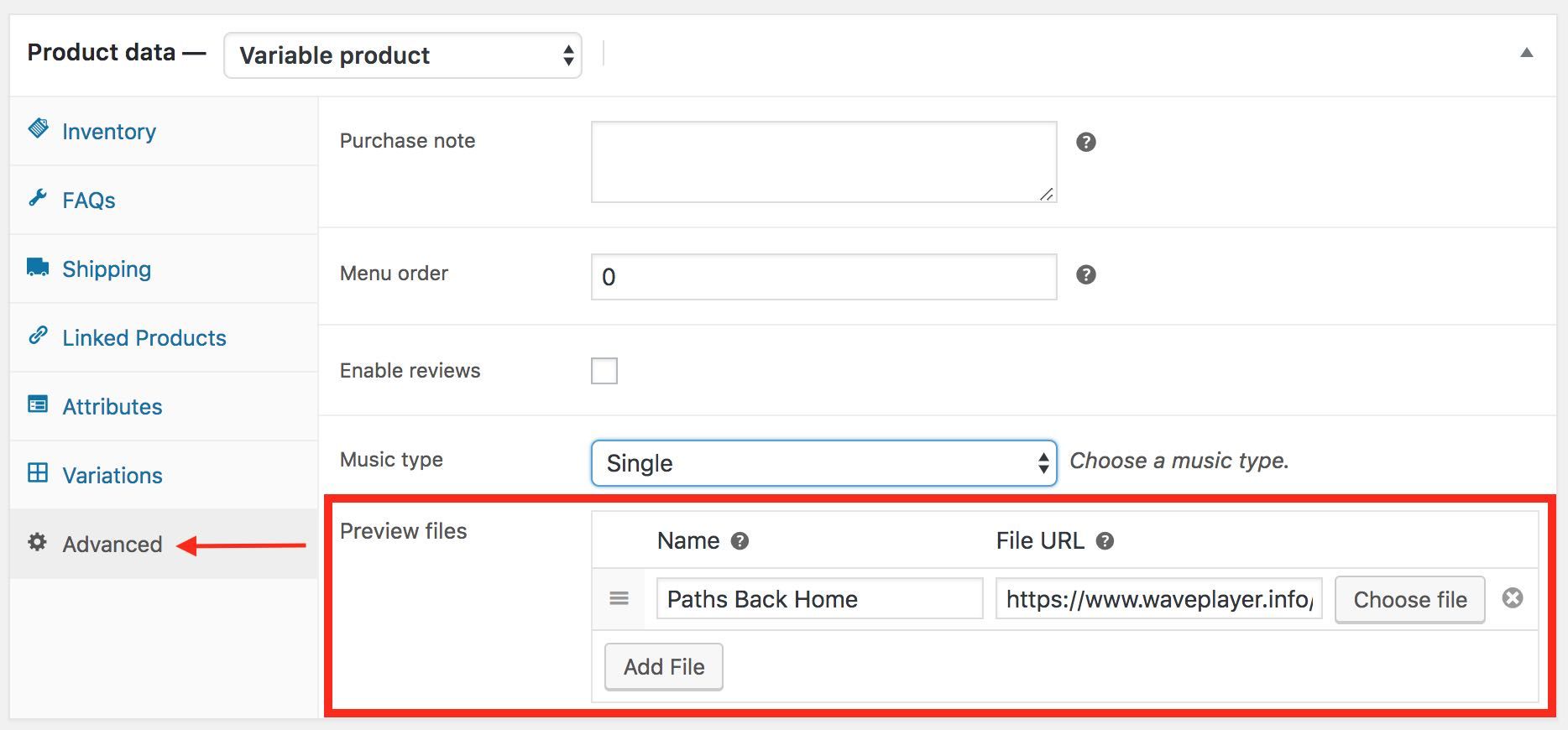
    That is why WavePlayer adds a Preview File section to the Advanced tab of the WooCommerce product editor. When you add one or more preview files to a WooCommerce product, WavePlayer will automatically insert into the product page and the product list item of the Shop page an instance of the player containing those preview files.

    HOW TO ADD PREVIEW FILES TO A PRODUCT

    If you want to take advantage of the WooCommerce integration, you can follow these steps:

    • go to Products and open the product you would like to edit
    • in the Product Editor, select the Advanced tab
    • click on the Choose file button to select the preview file you want to use for this product
    • if you want to add more preview files (for example, if your product contains multiple audio files, such as an album or a sound effect collection), click on the Add File button and repeat the previous step
    • once you are done with adding the preview files to the current product, click on the Update button

    WavePlayer will store the preview files as metadata of the corresponding product in the database.

    AUTOMATIC INTEGRATION

    The main advantage of the preview file is that you can let WavePlayer do automatically what you used to do manually when you had to add a player in the description of the product. Moreover, this automation avoids any possible problem with the formatting of the page, because WavePlayer always inserts the player following the configuration you choose in the settings, for both the Product Page and the Shop.

    GENERAL GUIDELINES

    As we pointed out earlier, it is important to understand that preview files should be different from downloadable files, as you don’t want to freely expose in the browser what your visitors are supposed to buy. When preparing the preview files of your downloadable tracks, you want to consider what follows:

    • due to most web servers limitations (particularly the shared hosting plans), WavePlayer is not capable of automatically cutting a shorter preview file off of a longer downloadable file: this is something you have to prepare yourself and upload to the website separately
    • for the same web servers limitation, WavePlayer cannot automatically watermark audio files: another area where you have to prepare your files separately
    • only use the Preview Files section to upload your preview files: if you accidentally upload both downloadable files and preview files using the Downloadable files section, your preview files won’t be accessible by WavePlayer. Thus, WavePlayer, like any other player, won’t be able to play them back.
    • you can list multiple preview files to a single product (as an example, think of an album composed of several different songs): when WavePlayer finds a product with multiple preview files, it automatically creates a playlist in association with that player instance. How this playlist is going to appear on the page depends on how you configured the WooCommerce integration settings.
    • albeit possible, we discourage from adding the same preview file to multiple products: when you choose to show a cart button or a product link in a playlist, that button or link refer to the product the track is associated with. If you associate the same track to multiple products, WavePlayer might not be able to retrieve the correct product and the result could create confusion. For this reason, recommend using one unique file for each product.
  • Installing WavePlayer: a step-by-step guide

    How to install WavePlayer

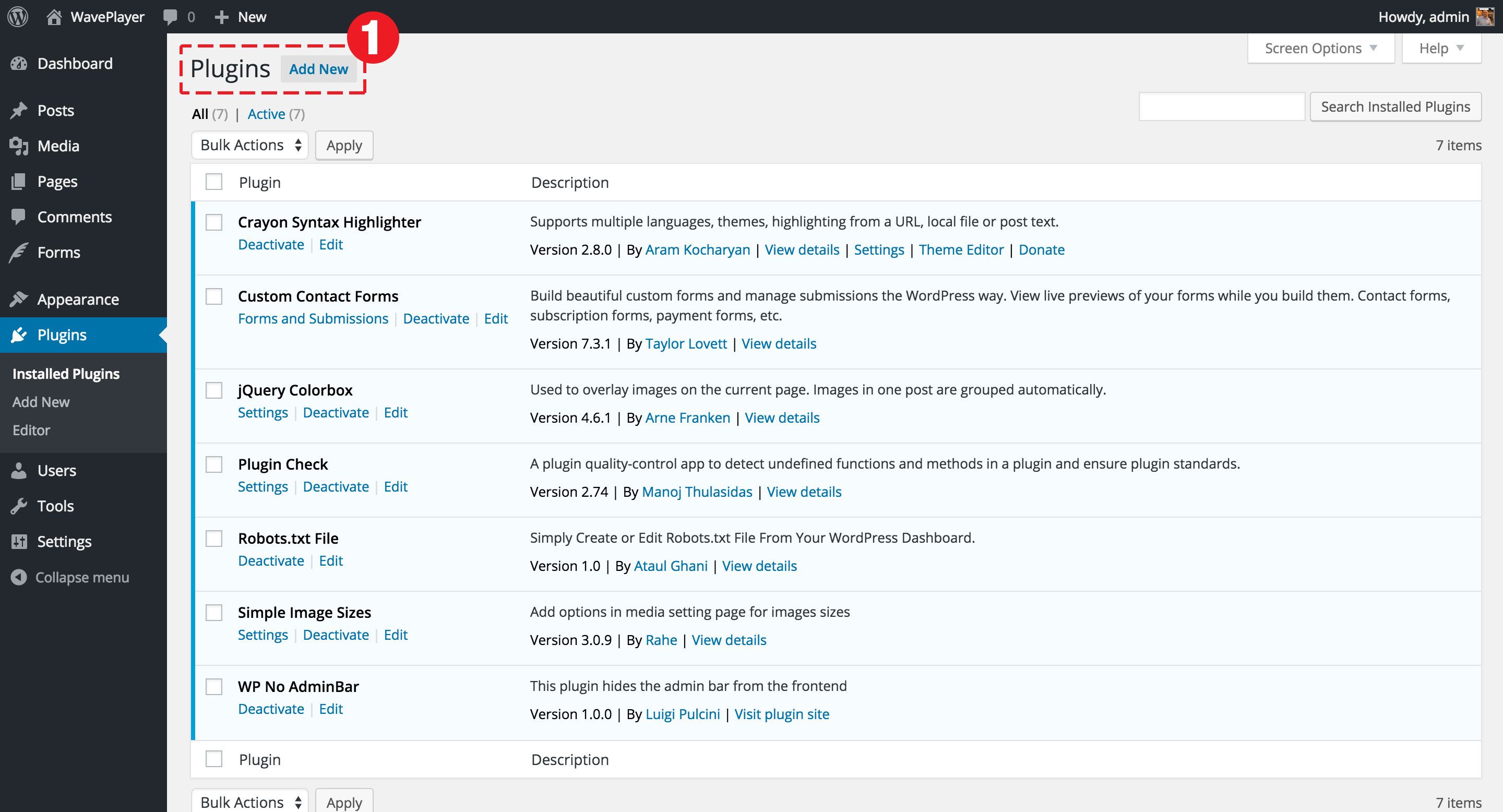
    step 1: add a new plugin to install

    Step 1
    In order to install the plugin, go to the WordPress Plugins section, click on the Add new button, right beside the Plugins page title.

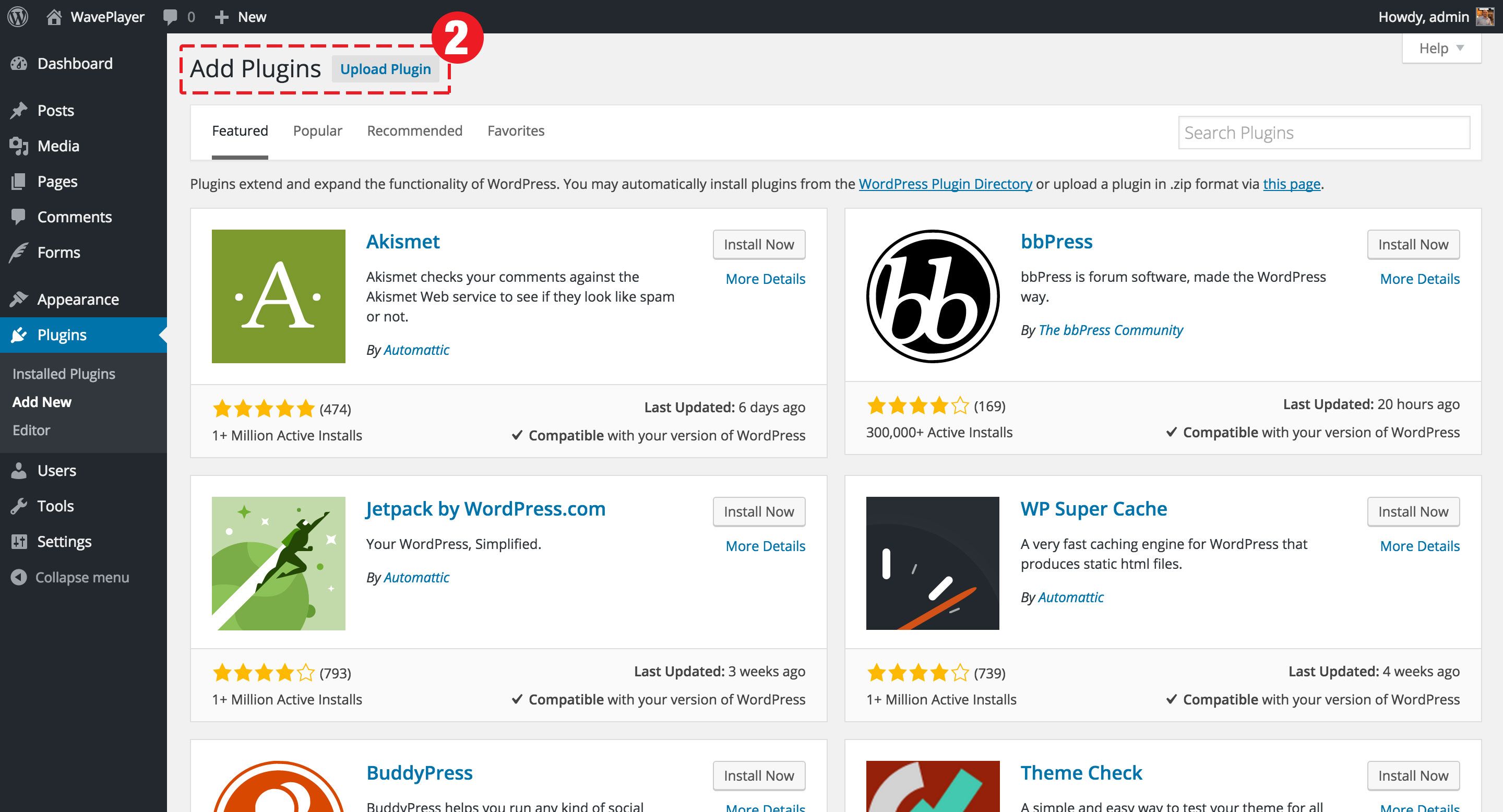
    step 2: go to the upload page to install the plugin

    Step 2
    Click on the Upload Plugin button, right beside the Add Plugins page title.

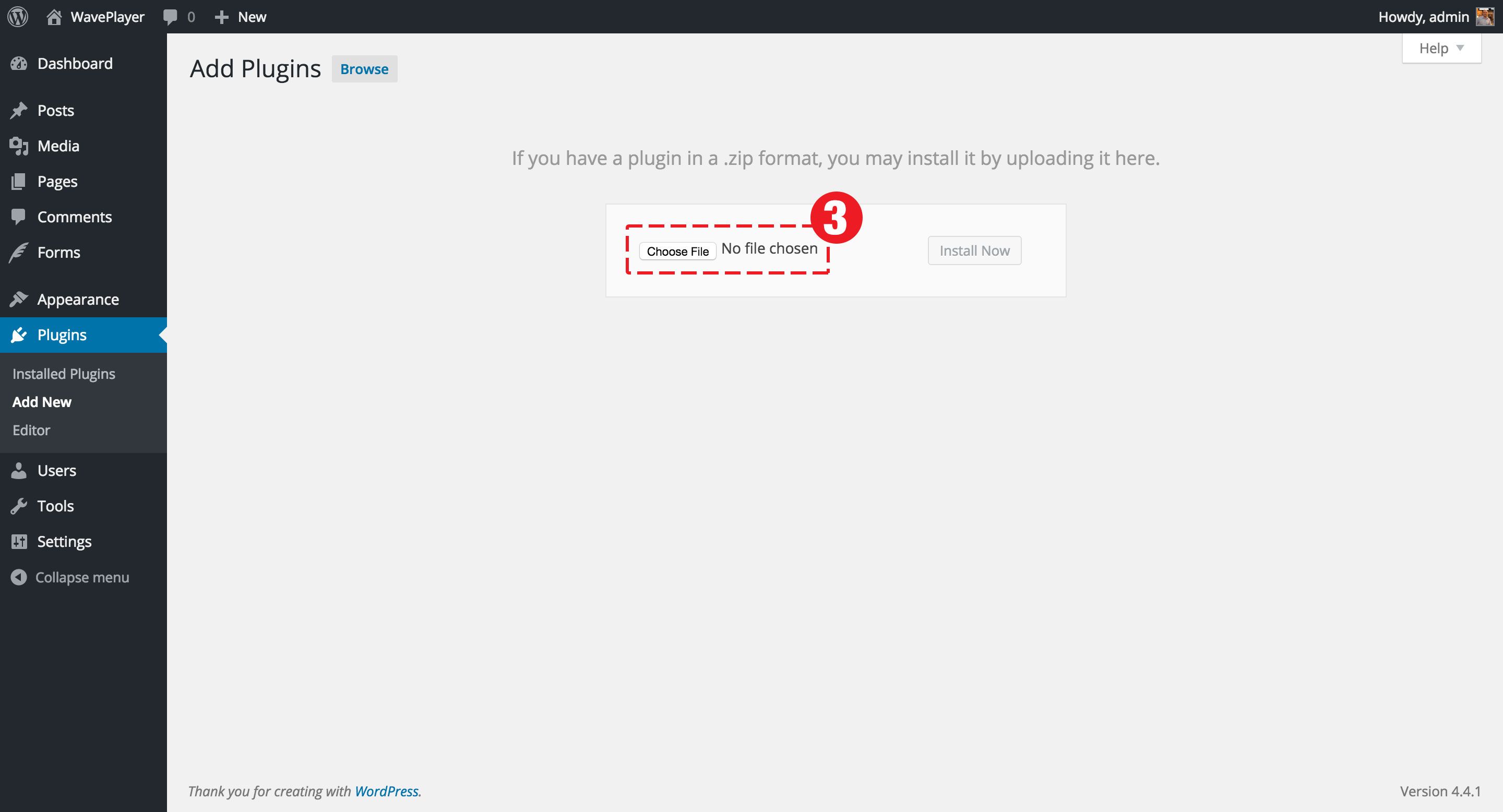
    step 3: select the ZIP file containing the plugin you want to upload

    Step 3
    Click on the Choose file button in order to select the location of your waveplayer.zip file.

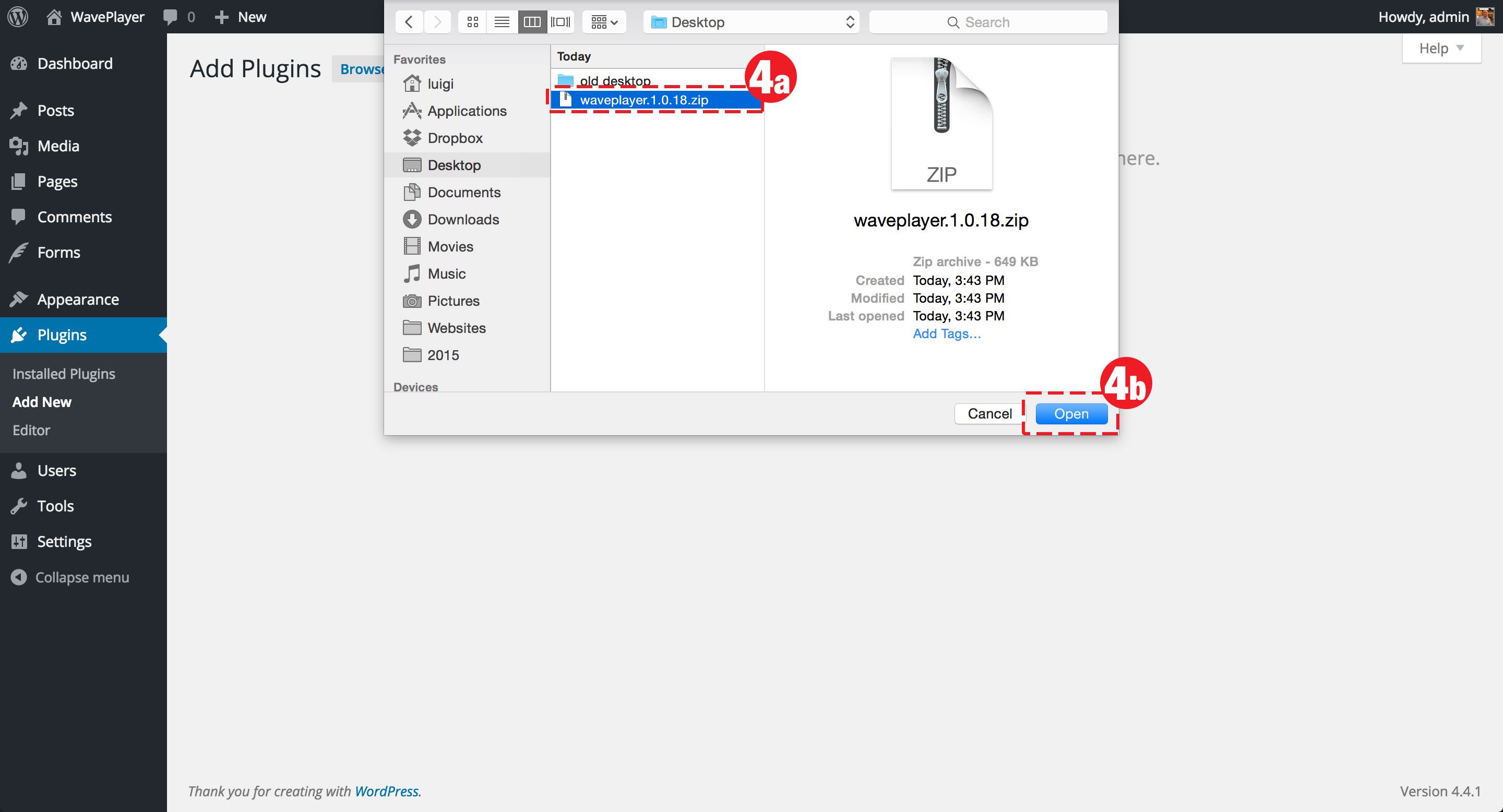
    step 4: choose the zip file to install

    Step 4a
    Browse to the location where you downloaded the waveplayer.zip file.
    Step 4b
    Click on the Open button.

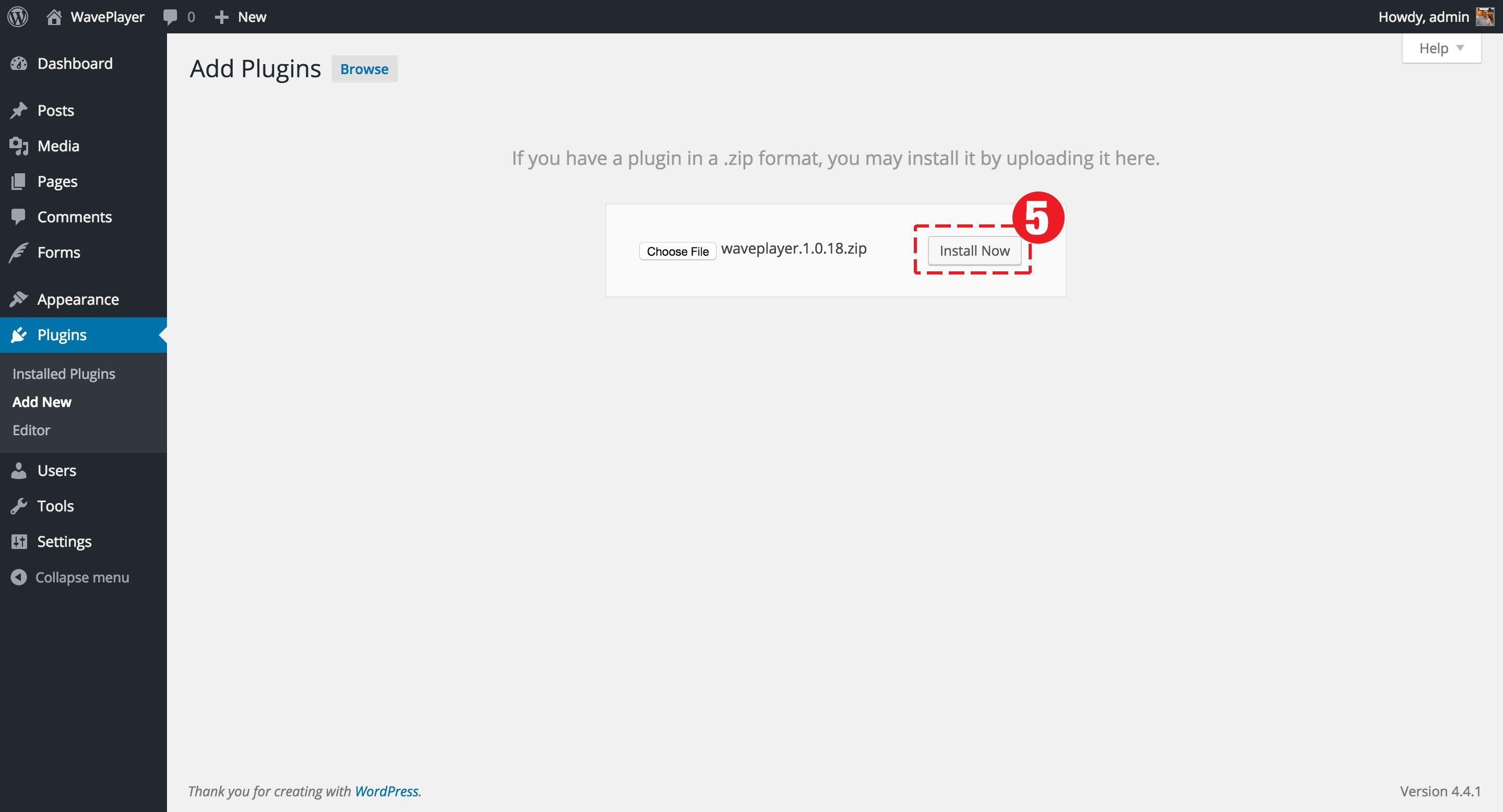
    step 5: press the install now button

    Step 5
    The plugin is now active. You can click on the Settings link right below its name or go to Settings -> WavePlayer to configure its options.

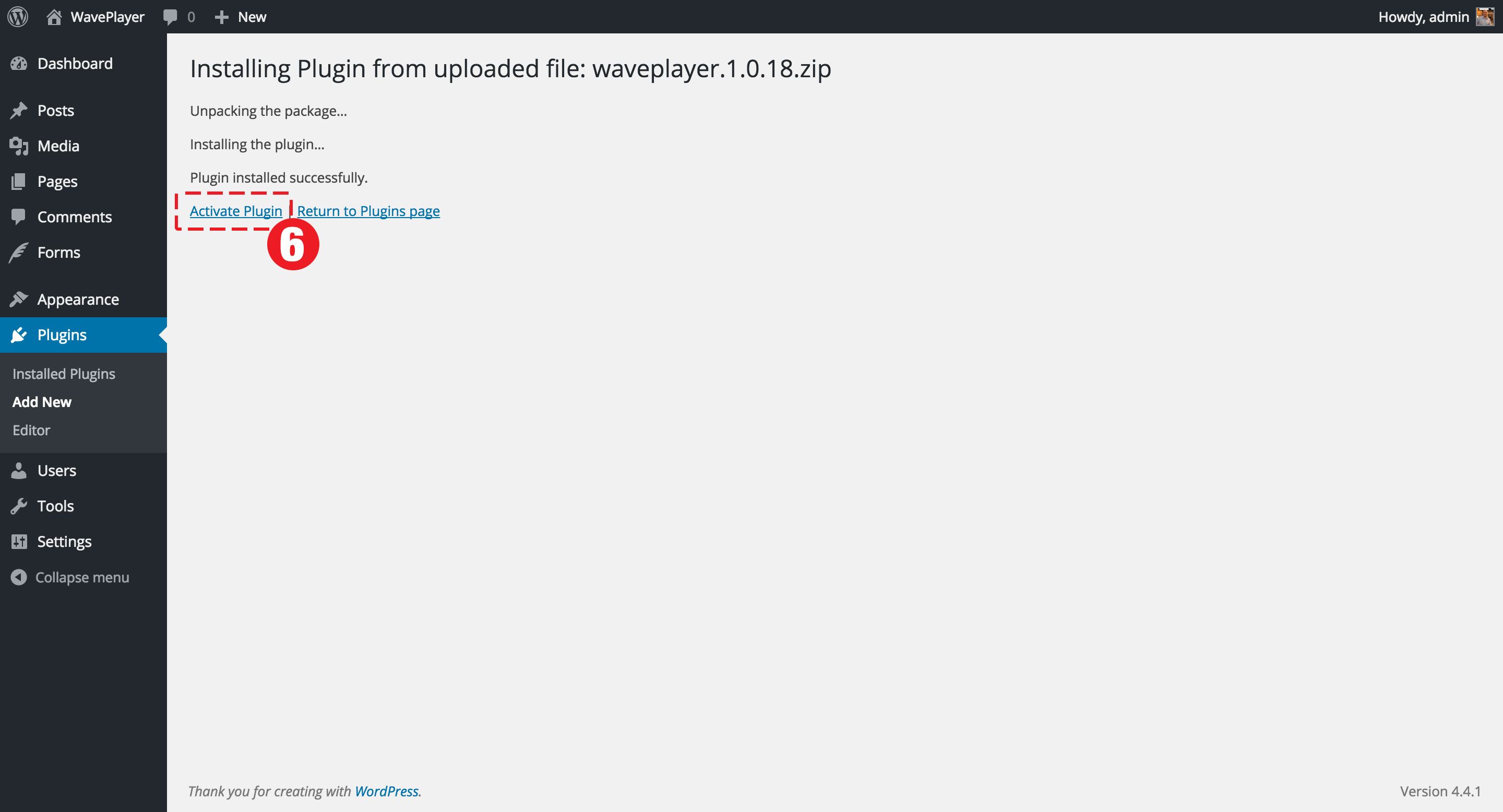
    step 6: activate the plugin after the installation completes

    Step 6
    Once WordPress has finished uploading the plugin files, click on the Activate Plugin link.

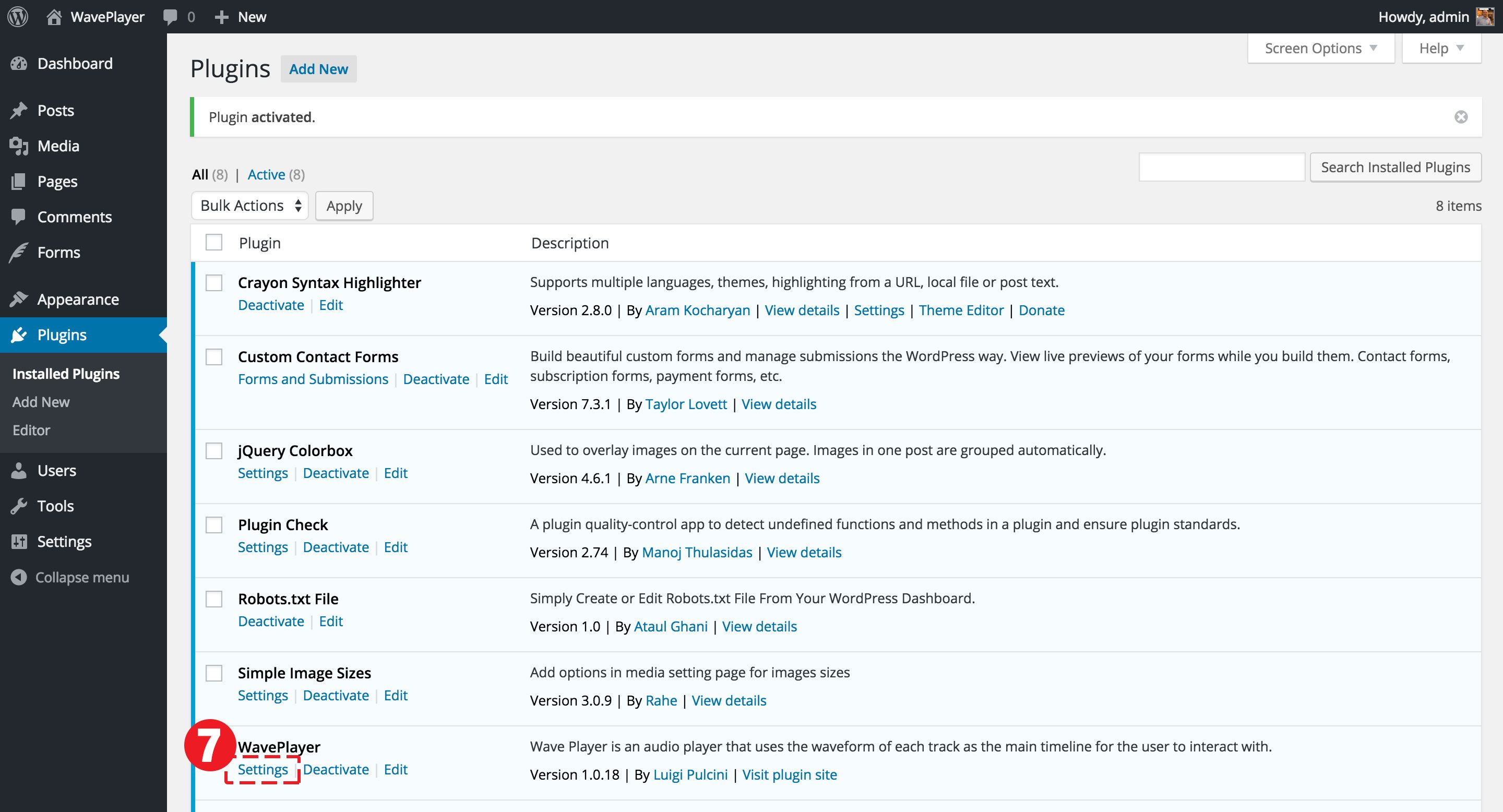
    step 7: go to the settings page of the plugin

    Step 7
    The plugin is now active. You can click on the Settings link right below its name or go to Settings -> WavePlayer to configure its options.

0:00
0:00